Where to Place Social Sharing Buttons for Maximum Engagement
Share
How Strategic Placement Can Triple Shares and Drive More Traffic
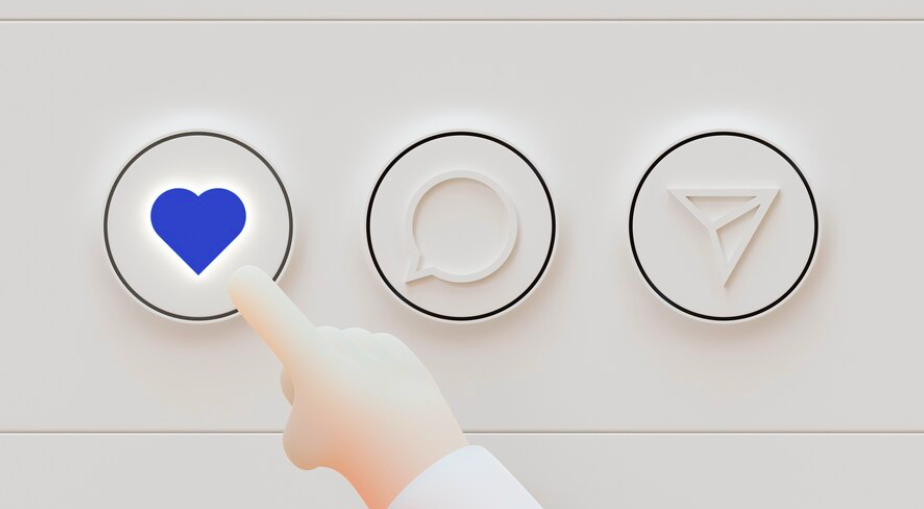
Adding social sharing buttons to your website seems simple enough—place a few icons on a page and wait for users to do the rest. But in reality, where you place those buttons matters as much as whether you have them at all. Small tweaks in placement can dramatically increase how often users share your content, how long they stay on your site, and how much referral traffic you get from platforms like Facebook, Twitter, and LinkedIn.
This article explores where to place social share buttons for maximum engagement, based on user behavior, screen type, and content structure. We’ll also share a real-world case study of how a Thai health blog tripled its share rate just by moving its share buttons to a better location.
Why Social Sharing Placement Matters
Most users don’t instinctively scroll to the bottom of a page to look for share buttons. They decide whether or not to share in the moment they’re emotionally or intellectually engaged. That moment can occur:
-
Right when they start reading and feel excited about the content
-
After reading a powerful section that confirms their values or solves a problem
-
As they skim through a list or watch an embedded video
If the share buttons aren’t visible at those moments, you lose a valuable opportunity. By understanding user behavior, you can place share buttons where they’re most likely to be used—without being intrusive.
The Key Zones for Social Sharing Buttons
1. Top of the Content (Above the Fold)
Placing share buttons at the very top—either just above the article title or immediately below it—is one of the most effective placements.
Why it works:
-
Highly visible
-
Users associate it with premium content (they assume it’s “share-worthy”)
Encourages quick sharing without reading the full post—ideal for loyal or repeat visitors
Best for:
Blogs, long-form articles, product pages, and landing pages
Note: On mobile devices, keep the buttons compact or collapsible to avoid crowding the screen.
2. Floating Sidebar (Desktop Only)
Floating sidebars that remain visible as users scroll through content are a popular and effective option—on larger screens.
Why it works:
-
Always accessible without needing to scroll up or down
-
Offers a clear visual cue without interfering with reading
-
Great for long-form or pillar content
Best for:
Editorial websites, SaaS blogs, whitepapers, tutorials
Watch out:
Avoid using this placement on mobile—it can block content and frustrate users.
3. Inline or Mid-Content Placement
Placing share buttons between content sections—such as after a compelling paragraph, quote, or list—can prompt sharing at emotional or informative peaks.
Why it works:
-
Captures readers when their interest is highest
-
Feels more organic than fixed placement
-
Encourages contextual sharing (e.g., “I have to share this tip!”)
Best for:
How-to articles, listicles, inspirational content
Tip: Add a subtle prompt like “Enjoying this tip? Share it with your friends!”
4. End of the Content (Footer or Below Article)
Traditionally, websites placed sharing buttons at the end of articles. It still works—but not on its own.
Why it works:
-
Users who read to the end are more engaged and likely to act
-
Offers a logical next step after consuming content
-
Good place to combine sharing with comments or related articles
Best for:
Research-based articles, personal essays, reviews
Use in combination with:
A second, more prominent placement (top or floating)
5. Within or Near Multimedia Elements
Embedding share buttons near videos, infographics, or downloadable resources can enhance visibility.
Why it works:
-
Multimedia content is highly shareable
-
Users want quick ways to show their network what they’re watching or downloading
-
Good for content that doesn’t rely on long text
Best for:
Video blogs, resource hubs, infographic pages
Mobile-Specific Considerations
On mobile devices, screen real estate is limited. Overly large or fixed-position buttons can block key content or frustrate users. Instead, use:
-
Compact, icon-only share buttons
-
Slide-up or sticky bar at the bottom (not too tall)
-
Expandable “Share” button that reveals full options when tapped
Test across devices to ensure share buttons don’t interfere with navigation or readability.
Case Study: Health Blog Boosts Facebook Traffic by 40%
A health-focused blog in Thailand had high-quality content but modest traffic growth. They had share buttons—placed neatly at the bottom of each article—but most readers didn’t see them.
After reviewing heatmaps and scroll data, they noticed that:
-
Many users never scrolled to the end of articles
-
Engagement dropped off significantly after the first few paragraphs
-
Share button clicks were less than 1% of total page interactions
The solution:
-
They moved share buttons to the top of each article, just below the headline
-
Reduced the number of platforms shown to the top three (Facebook, Twitter, LINE)
-
Added a floating bar for desktop, and a collapsible bottom bar for mobile
-
Included a prompt: “Found this helpful? Share with someone who needs it.”
Results after 3 months:
-
Sharing rate tripled (from 0.9% to 2.7%)
-
Facebook referral traffic increased by 40%
-
Social shares helped improve search rankings for 5 high-traffic blog posts
This small UX change turned passive readers into active promoters—and fueled sustainable growth without paid ads.
Final Thoughts: Share Buttons Are Small but Strategic
Social sharing buttons may seem like a minor detail, but their placement can make or break your content’s reach. The right button in the right place at the right time can amplify your message and bring new audiences to your website—for free.
Key takeaways:
-
Place share buttons where attention is highest: top, floating sidebar, or mid-content
-
Adapt for mobile with non-intrusive, tap-friendly design
-
Test different placements and track performance
-
Use prompts and minimalist design to reduce cognitive load
-
Combine placements (e.g., top + footer) to maximize visibility
Your content deserves to be shared. Make it easy, intuitive, and impossible to miss.

Share

Keep me postedto follow product news, latest in technology, solutions, and updates
Related articles
Explore all